
Team Spockholm has is beta testing the Operator which is an amazing script to help us perform and manage our Operations without all the clicking. I can’t stand Operations because of all the scrolling and clicking they require but I have enjoyed them so much while testing out this script. If you want to start using it too, follow the instructions below. To add your input, go this post in the Checklist and Toolbar Items Group.

1. Click on the link above to add Operator to your Spockholm Mafia Toolbar and click “OK” on the confirmation popup. Operator will now be added to your toolbar.

2. From your Spockholm Toolbar, type any part of Operator in the search bar and click on it to launch.

3. Your current Operations will load and a progress status will appear next to each one. Too look for more Operations, click on the “Find ops” button.

4. Click on either the “Load from Links” or “Load from feed” buttons.

Loading from links works just like the Link-Opener. Just paste the Operation links in the box. Go here if you need more instructions on how this function works.

Loading from feeds will list all the Operation requests floating around in your news feeds. Once loaded, you will get a list of all available Operations to choose from plus a lot of data to help you make your selections. In addition to the name and difficulty level, the number of slots available plus the ratios of each job are listed. This makes things very convenient.

5. To join any Operation, just click on the job you want. Once you click on the position, you will join that Operation and it will be added to your queue. You can only hold up to 10 at a time so choose wisely. A (clicked) will appear next to the job to prevent accidentally joining it again.


The log at the bottom of the bottom of the script will say “Probably joined” because there are many variables that would prevent one from not getting in. If the Operation filled up after the script was ran or if your queue is full are a few examples. I’ve found that I’ve gotten in to almost all the ones I tried.

6. Once you have Operations in your queue, click on the refresh button at the top of the script.
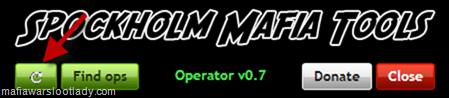
7. An updated status of your current Operations will appear.

8. Click on “finish” to actually to the job. The Action status will blink as each job is clicked and the percentage of mastery will appear below it.

Once the job is 100% mastered, it will say “Job finished”.

If you don’t have enough energy or stamina to do the jobs, it will stop.
 9. When an Operation is completed by all players, you can collect your rewards from the script as well. Just click on the “collect!” link and the rewards will display in the log.


This is sweet.
ReplyDeleteThank you spockholm and MWLL
Awesome piece of work - thank you!
ReplyDeleteWhen an Operation is completed, is there any option to publish/share the rewards to others?
ReplyDeletecan it be used at happyplace?
ReplyDelete